Selling Price Levels and Quantity Prices: Setting Them Up and Using Them in Sales and POS
How to set up price levels (levels 1 to 12) and quantity-based selling prices for each level, for example a wholesale or member price that drops when the customer buys more, without writing discount rules.
Where do I enter level prices and quantity prices?
- Go to Products & Inventory / Product Catalog / Product List and open the product.
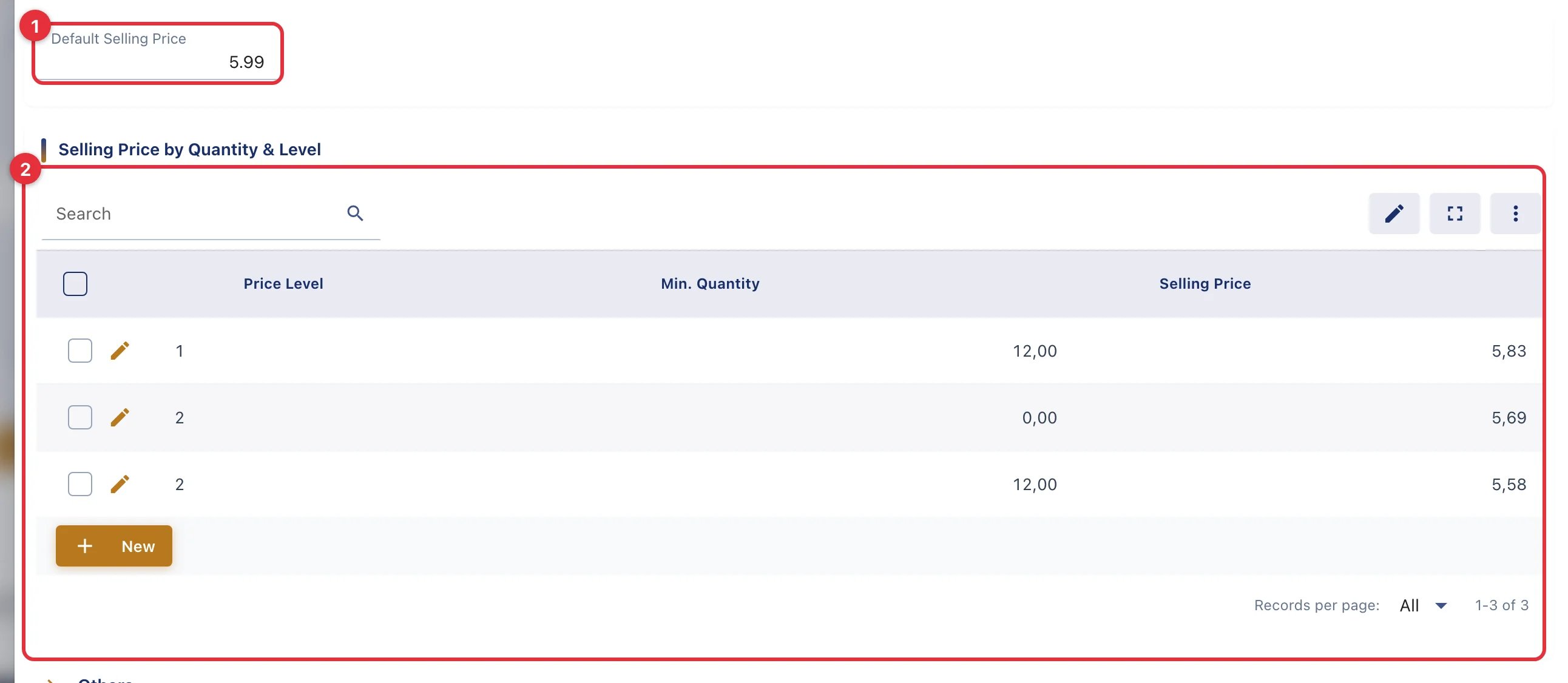
- In the Product Unit section, open the unit concerned. Default Selling Price in the Selling Price group is the unit's base price.
- In the same group, in the Selling Price by Quantity & Level table, add one row per price: pick the Price Level, enter the Min. Quantity, then the Selling Price. There is no limit on the number of rows.
- For a level price with no quantity condition, enter Min. Quantity 0. For a price that applies from a certain quantity, enter that quantity.
Example for one PCS unit: level 2 qty 0 = 9,500, level 2 qty 12 = 9,000, level 2 qty 48 = 8,500, level 3 qty 0 = 9,000, level 1 qty 24 = 9,600. A level 2 customer buying 20 PCS gets 9,000. Prices are entered per unit, so PCS and BOX each have their own table. To fill many products at once use Mass Pricing.
How is Min. Quantity counted?
- Min. Quantity is counted in the product's base unit. On a BOX unit holding 12, a row with Min. Quantity 24 is reached when selling 2 BOX.
- Among the rows reached, the one with the largest Min. Quantity is used.
- The price must be above 0, and a unit cannot have two rows with the same level and Min. Quantity.
What decides the level used on a transaction?
- The level is decided by the customer: the Price Level field (1 to 12, default 1) in Sales & POS / Customers & Sales Team / Customer List.
- On the Sales form the level follows the selected customer. With no customer, level 1.
- Customer groups, roles, and POS points have no price level of their own.
How do I make the POS show a particular level, for example level 7?
- Create or pick a customer whose Price Level is 7 (for example a "Wholesale Walk-in" customer).
- Go to Sales & POS / Point of Sale / Point of Sale Configuration, open the POS point, and set Default Customer to that customer.
- Reload the cashier screen. The prices shown are now level 7, and they drop when the quantity reaches a level 7 quantity row.
The cashier has no level picker. For one receipt only, change the customer on that receipt: the selected customer's level applies immediately.
Why is the price shown not the customer's level price?
- Price order: (1) Customer Negotiated Price if one exists for that customer and product; (2) the Selling Price by Quantity & Level row for the customer's level with the largest Min. Quantity already reached; (3) if that level has no row reached, the level 1 row reached; (4) Default Selling Price.
- So a level price loses to a negotiated price, and a level that has not been filled uses the level 1 quantity prices, then Default Selling Price.
- Sales Discount Rules still attached are applied AFTER this price. Once quantity prices are moved into the table, deactivate old discount rules that compute the same thing so the reduction is not applied twice.
- The Product Price List and Print Product Label reports only show the Default Selling Price.
What happened to selling prices 2-7 and price by quantity from versions before 8.1.65?
- Updating to 8.1.65 moves them into the Selling Price by Quantity & Level table automatically: Selling Price 2-7 become level 2-7 rows with Min. Quantity 0, and the three Sales Price by Quantity tiers become level 1 rows. Tiers whose price was 0 are not moved.
- Discount rules that use the old variables (for example
unit.salesprice6orunit.salesdiscprice1) keep working: their values are read from the new table. - Data converted from Acosys V3/V4 lands in this table too.